
Before you start
Nine steps, about five minutes. In the pictures, a red frame marks what you tap or fill in.
- Your invite code. It is in the email from the harbormaster.
- An email address you can open right now. We send a confirmation code to it.
- Element X on your phone or tablet. App Store, Google Play or F-Droid.
The pictures are from an iPad. On a phone the screens are narrower and otherwise the same.
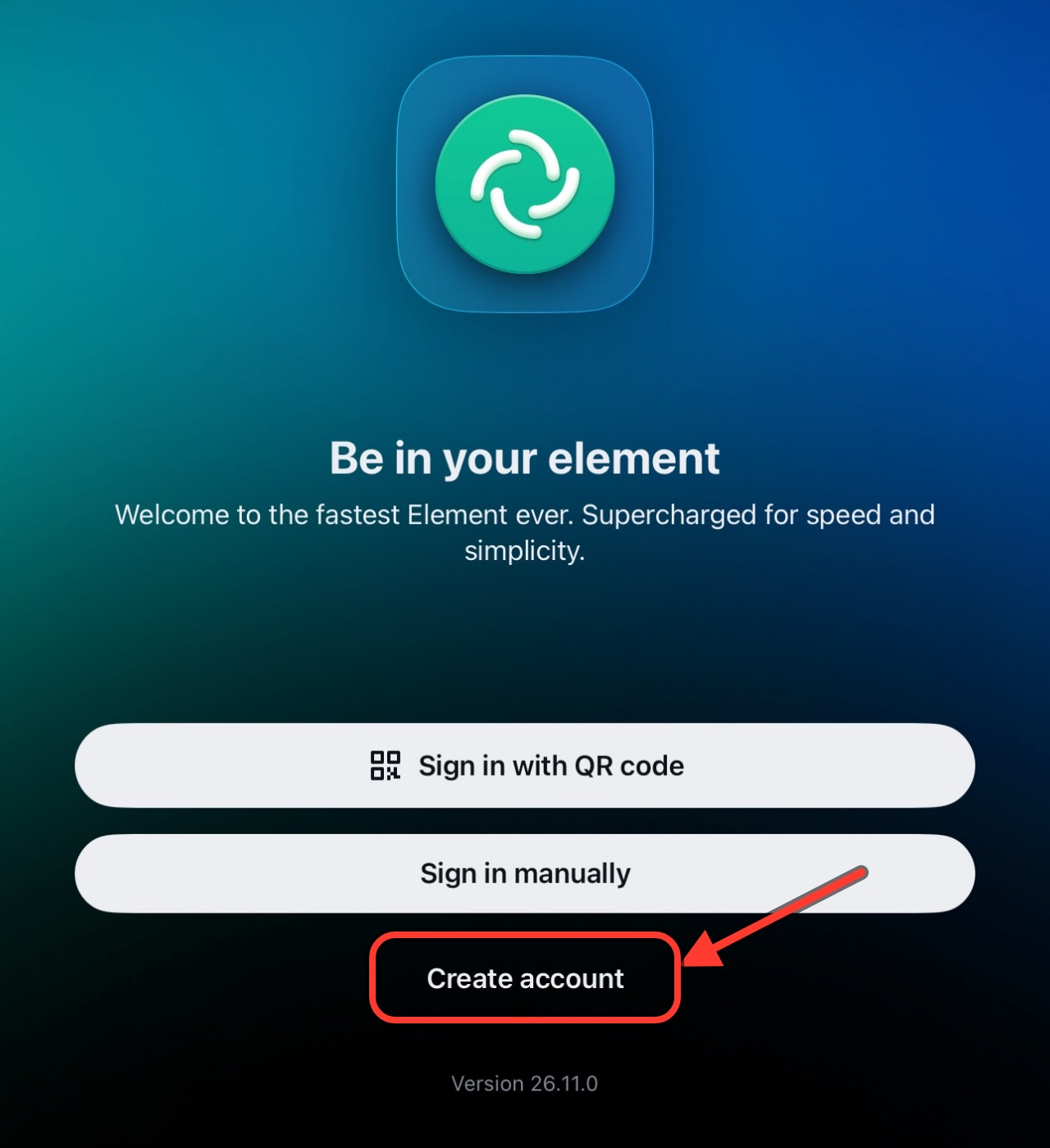
Tap “Create account”
Open Element X. On the first screen, tap Create account at the bottom.
The two sign-in buttons are for later, when you add another device.
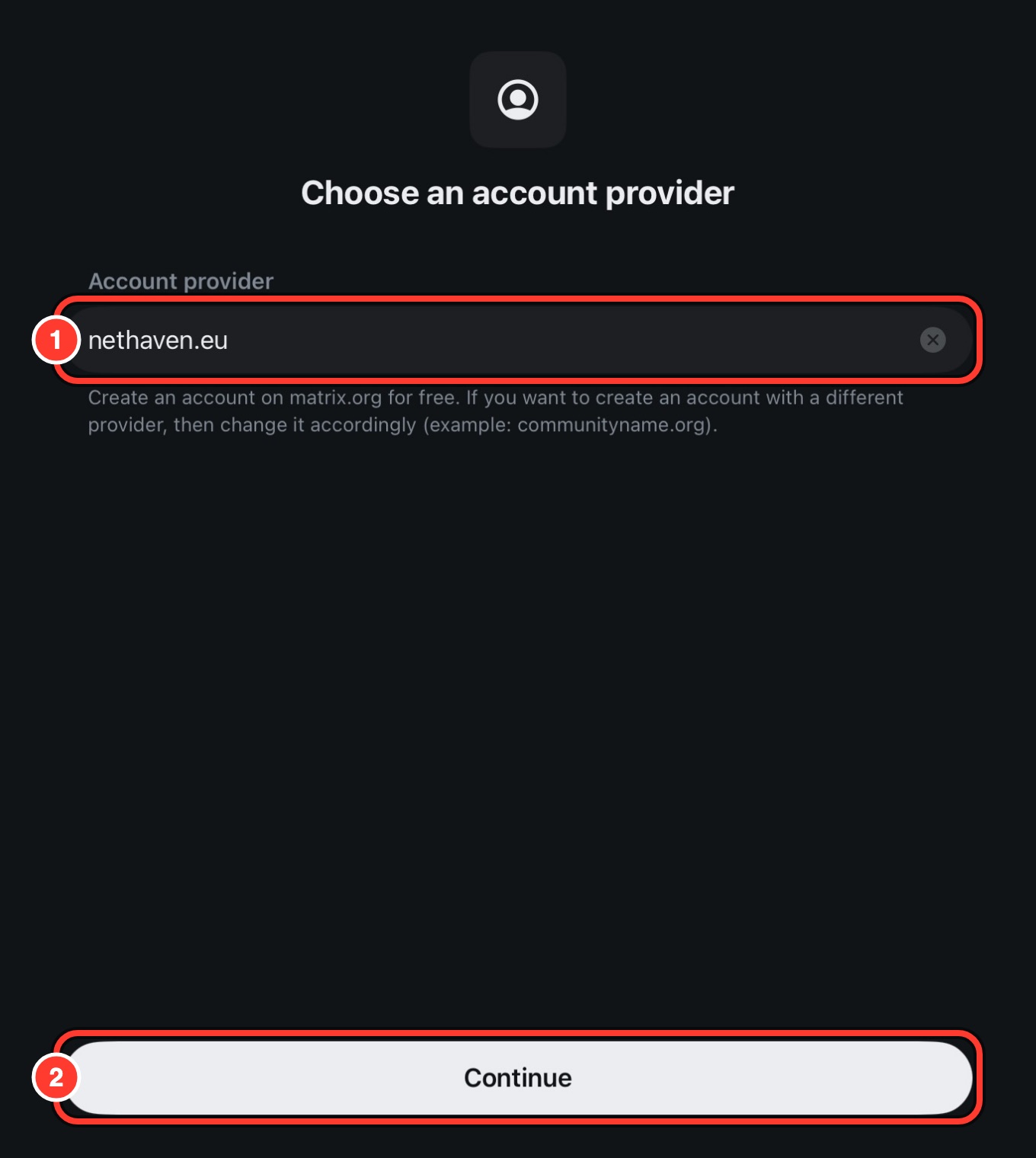
Change the account provider to nethaven.eu
The app suggests matrix.org. That is a different server.
- Clear the field and type
- Tap Continue.
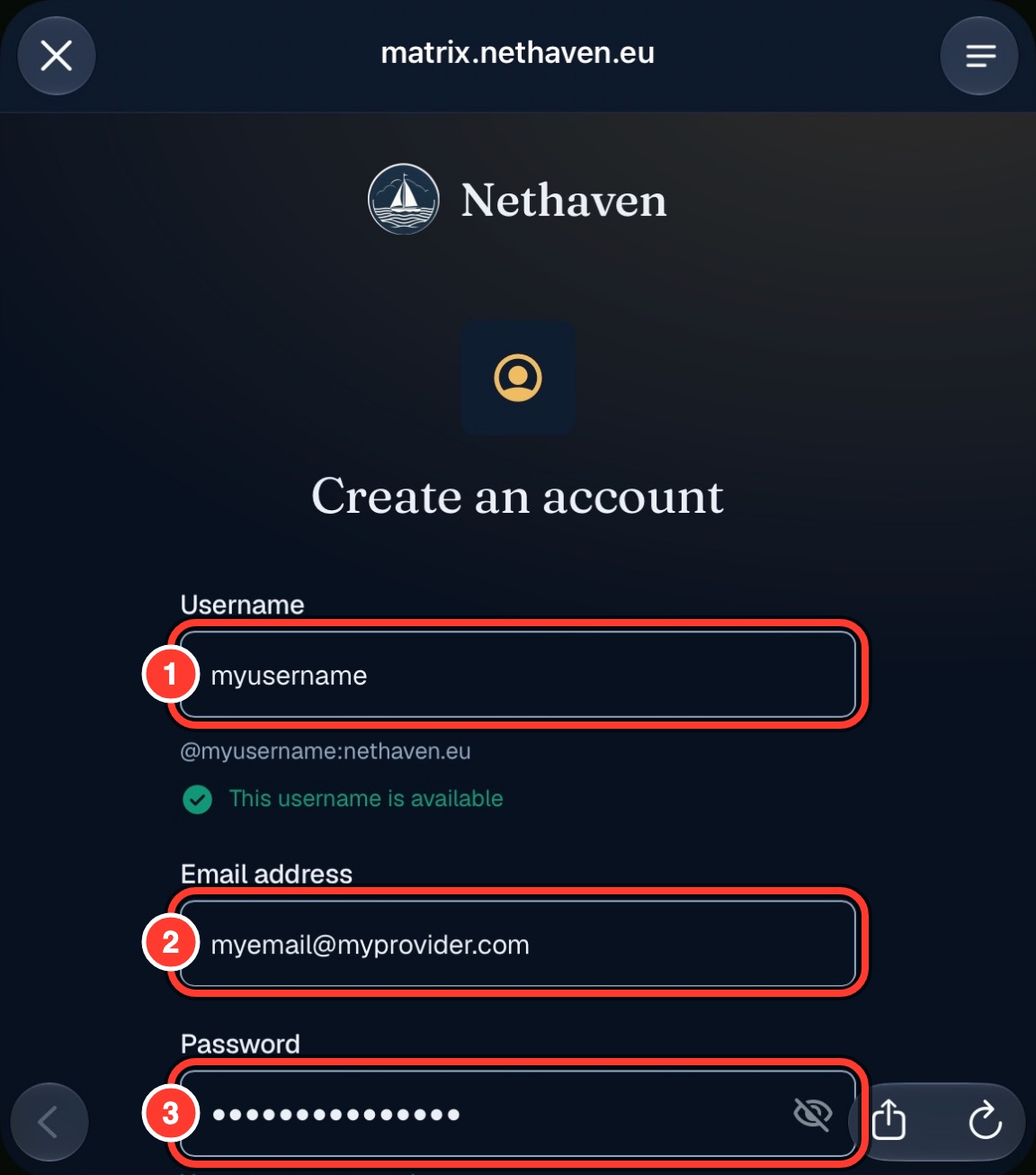
Pick a username, enter your email and a password
A Nethaven page opens inside the app.
- Username. It becomes your address, @username:nethaven.eu, and cannot be changed later. A green line tells you it is free.
- Email address. Use one you can open now.
- Password. A long one. The page shows how strong it is.
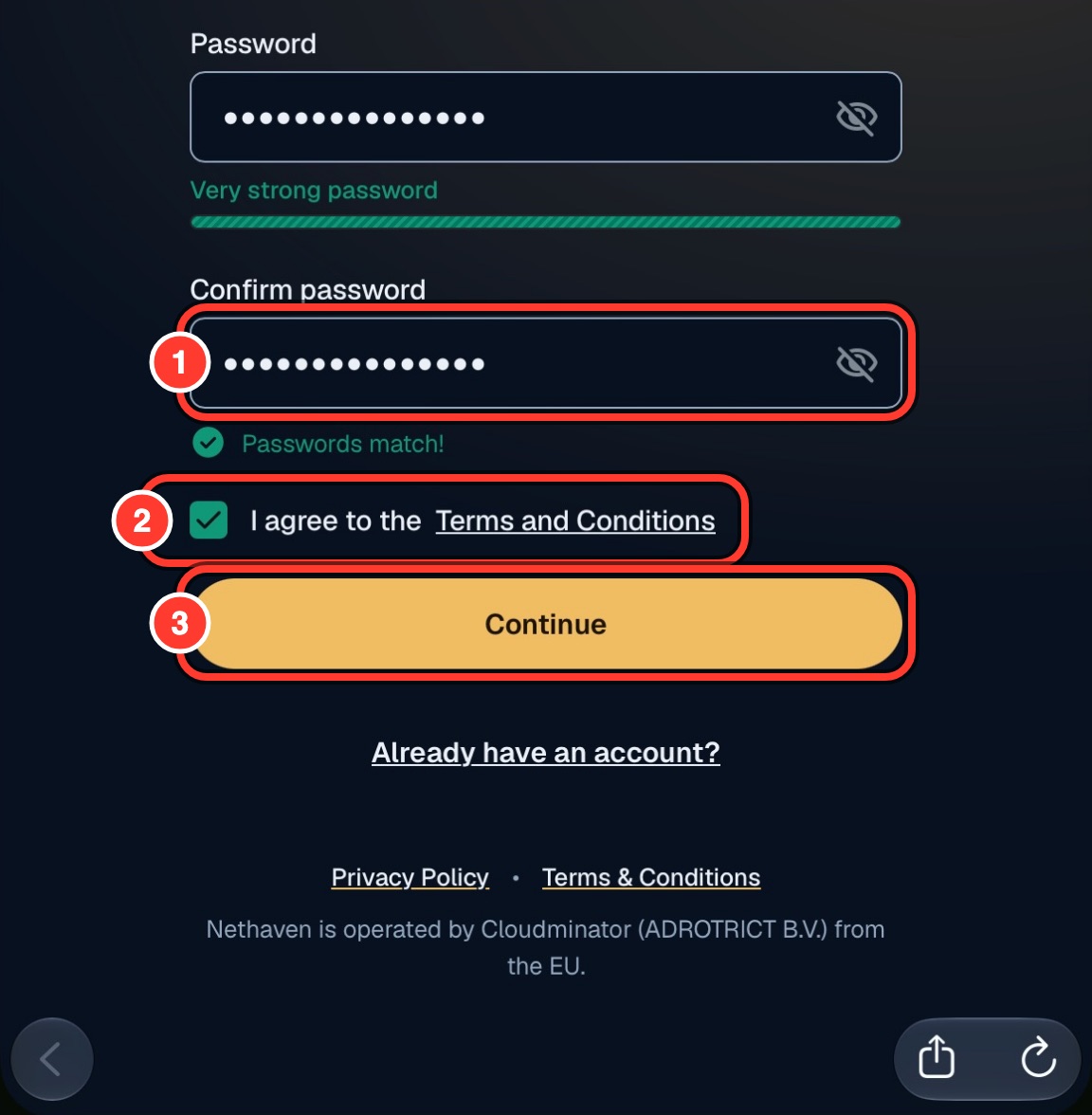
Repeat the password and accept the terms
Scroll down on the same page.
- Type the password again.
- Tick the box to agree to the terms.
- Tap Continue.
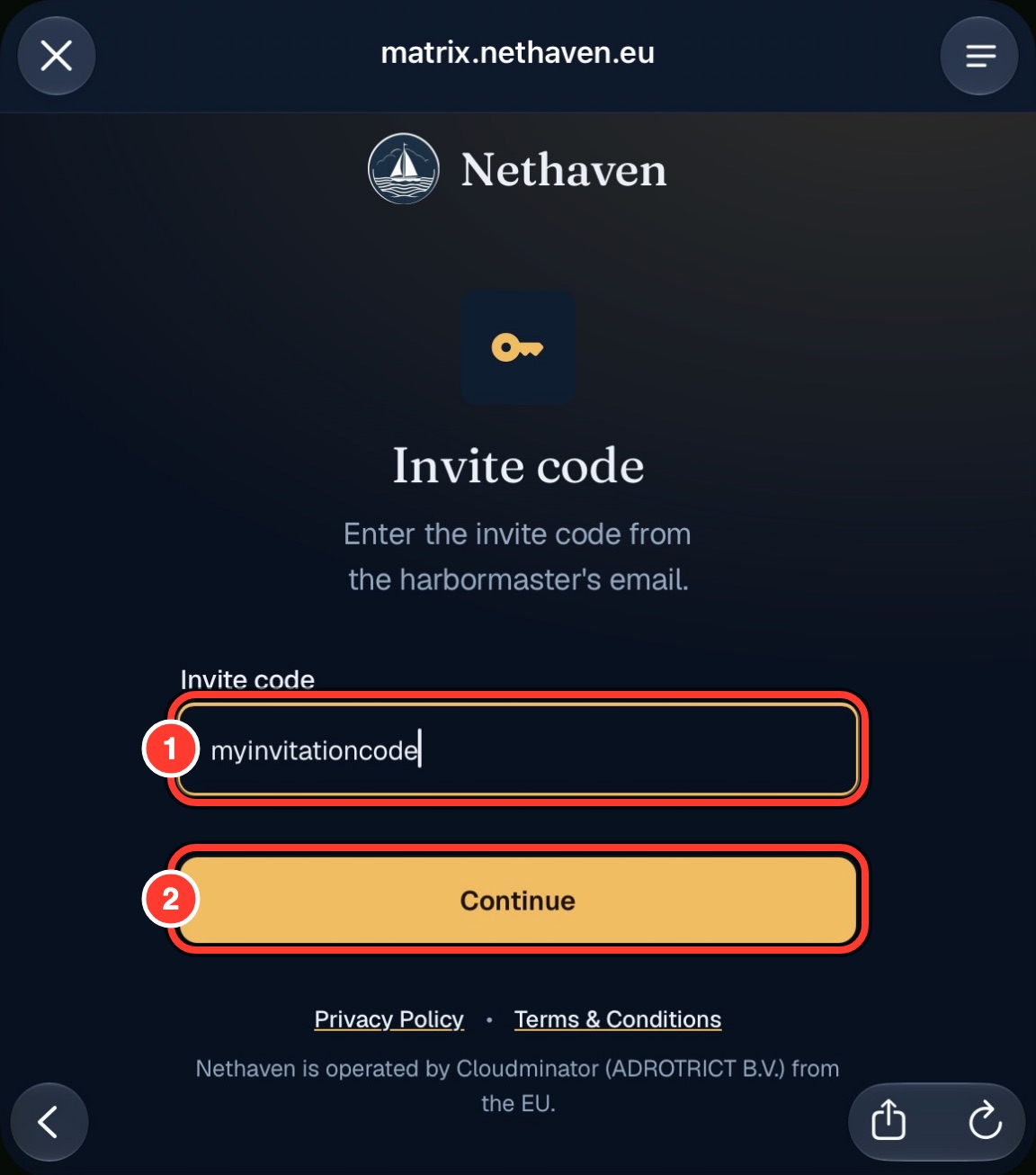
Enter your invite code
- Type or paste the code exactly as it is written in the harbormaster's email.
- Tap Continue.
A code works once and it expires. If the page refuses yours, see If you get stuck.
Confirm your email address
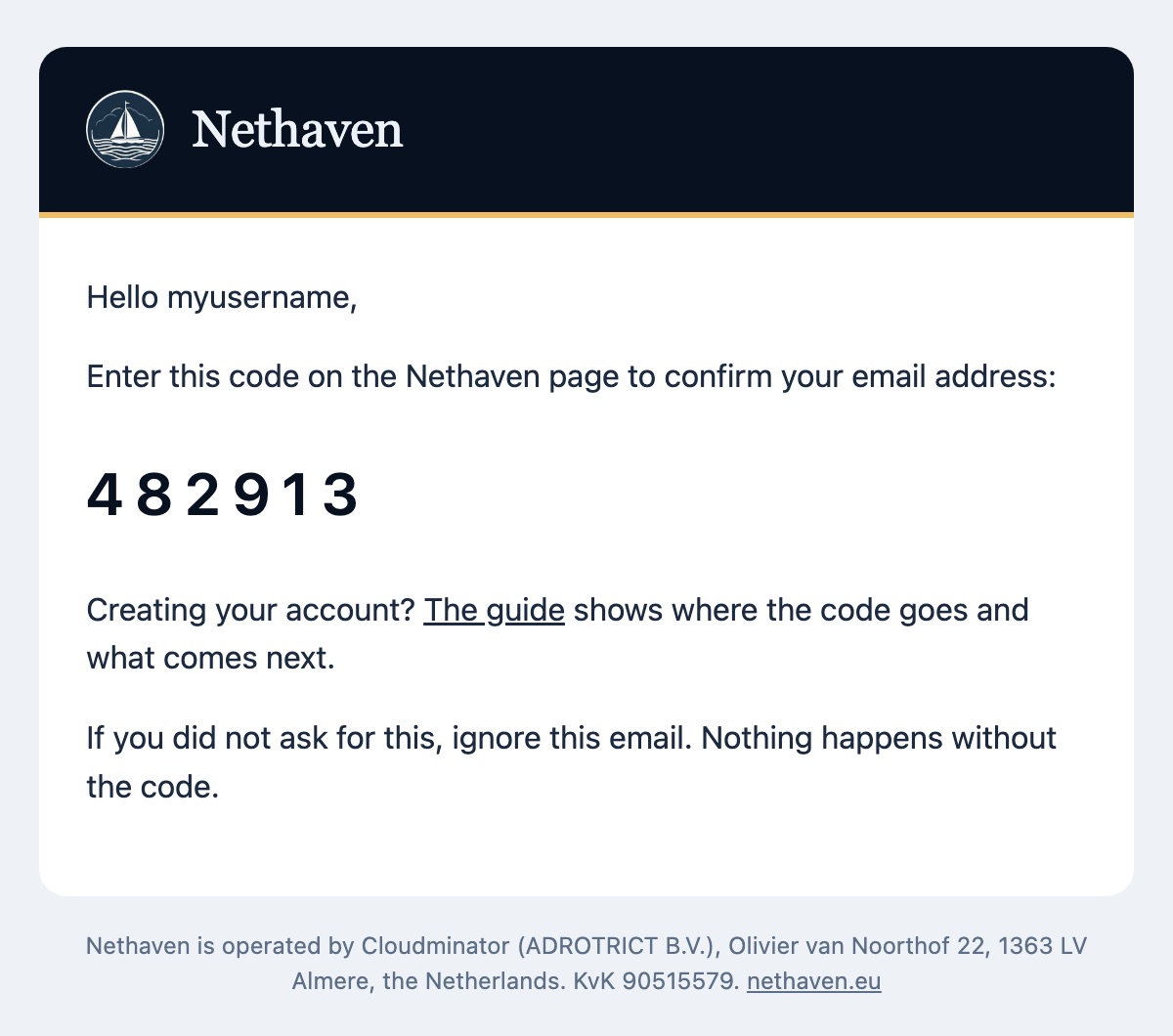
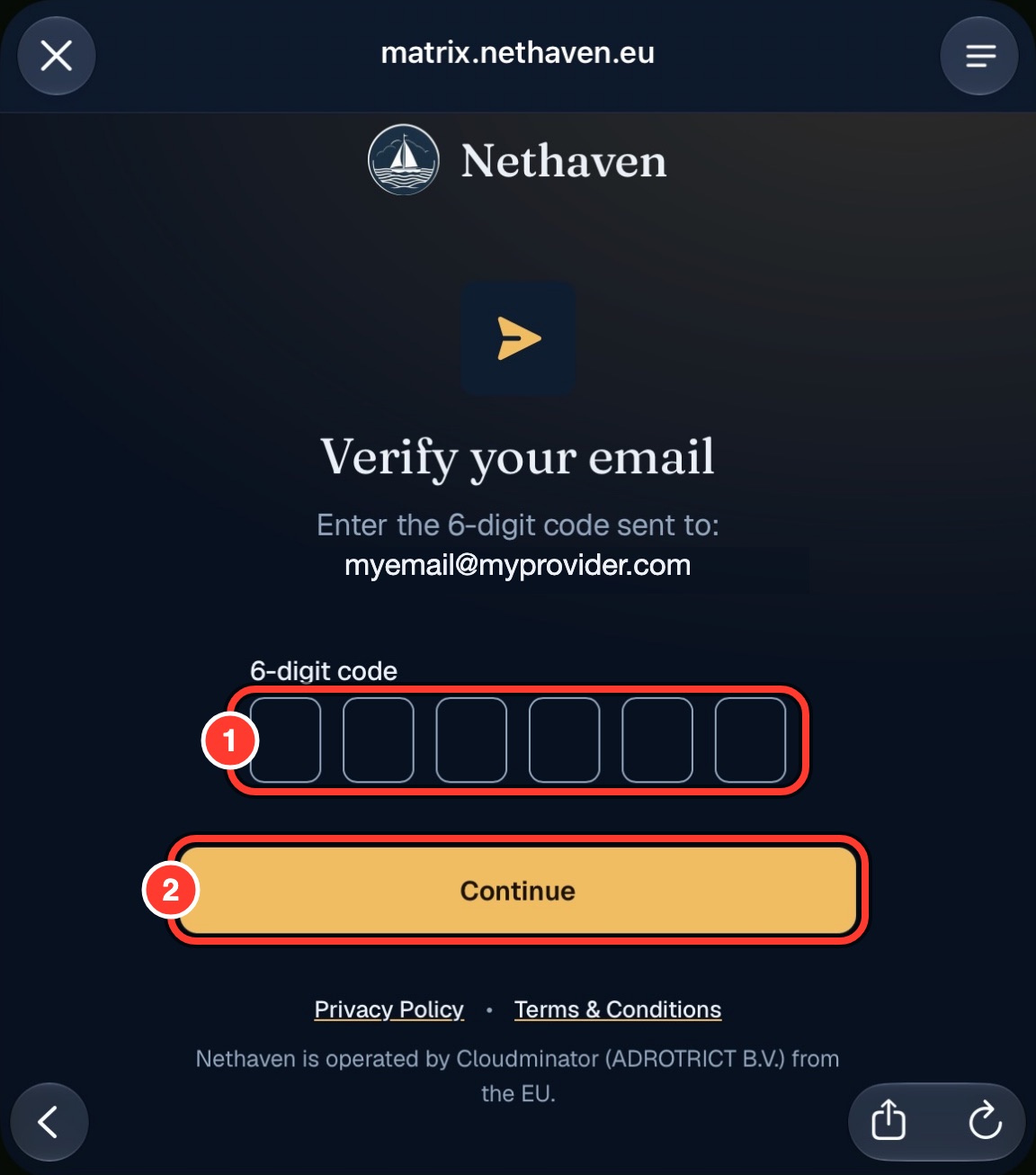
We send a 6-digit code to the address you entered. Open your mail app and look for a message from Nethaven with the subject “Your Nethaven code”. You can leave Element X and come back: the page waits.
- Enter the six digits.
- Tap Continue.
Nothing after a minute or two? Look in your spam folder.
Choose the name people see
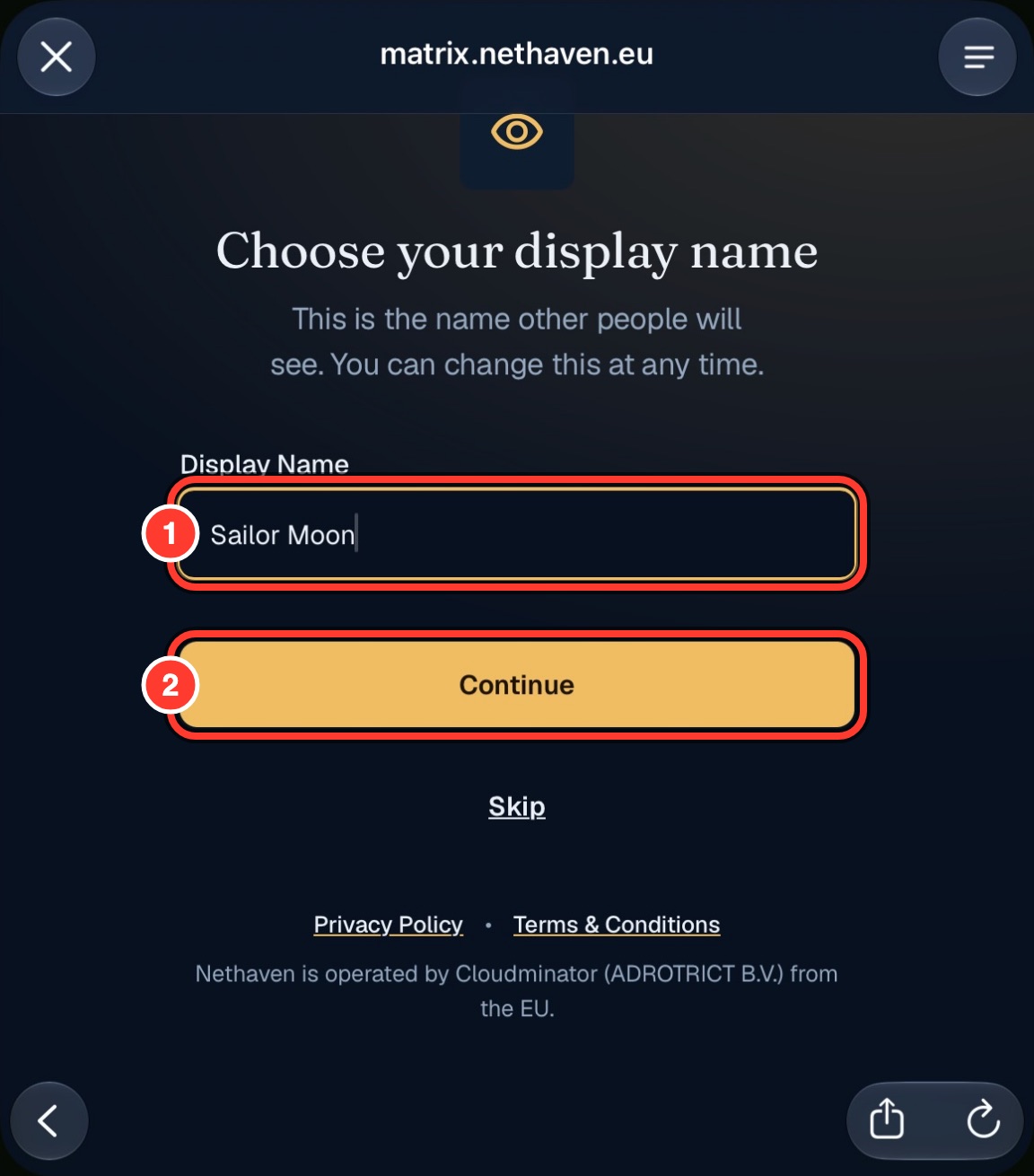
- Enter a display name, for example your first name.
- Tap Continue.
Unlike the username, this can be changed at any time. Skip uses your username.
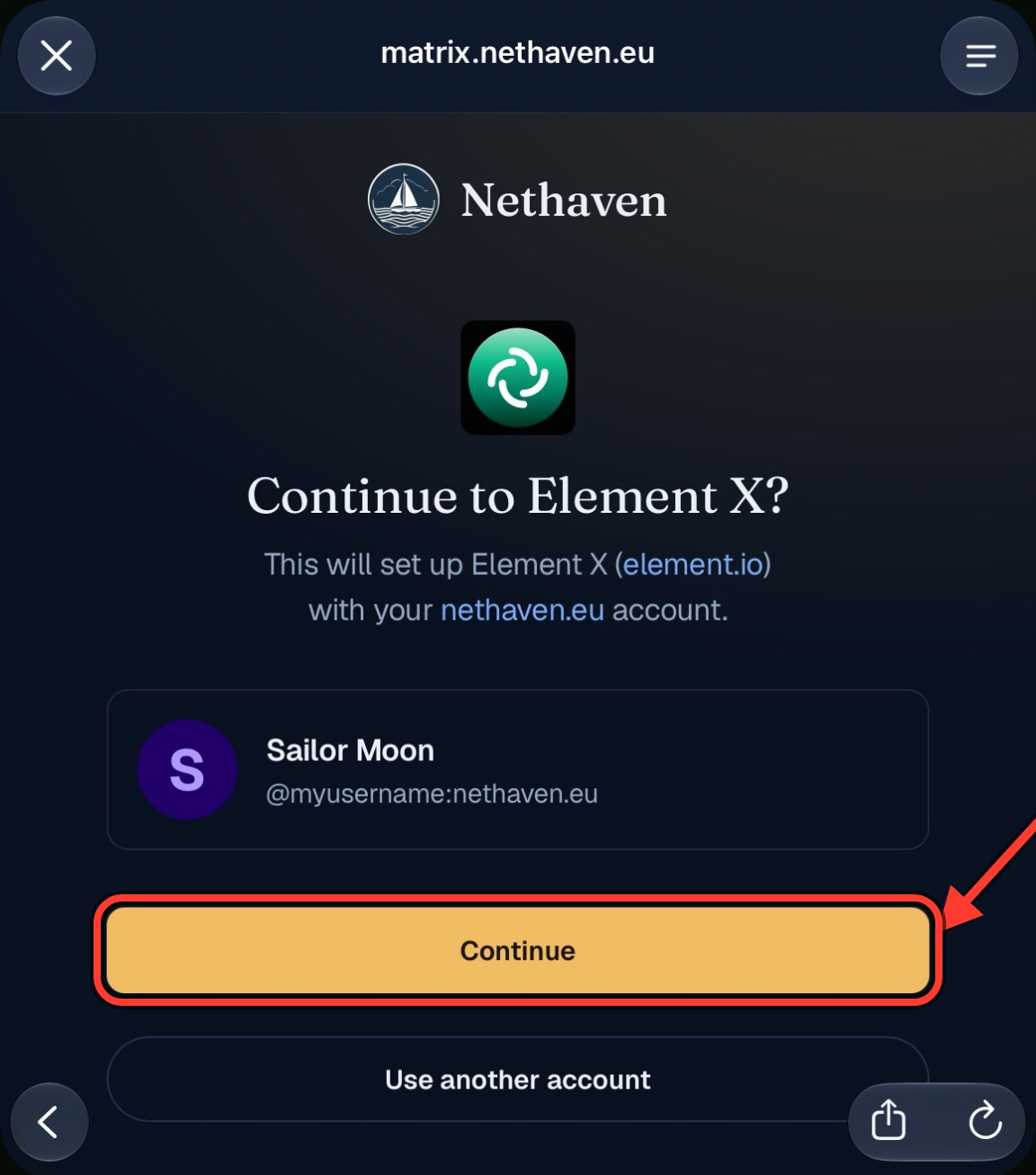
Go back to the app
The page asks whether Element X may use your new account. Tap Continue.
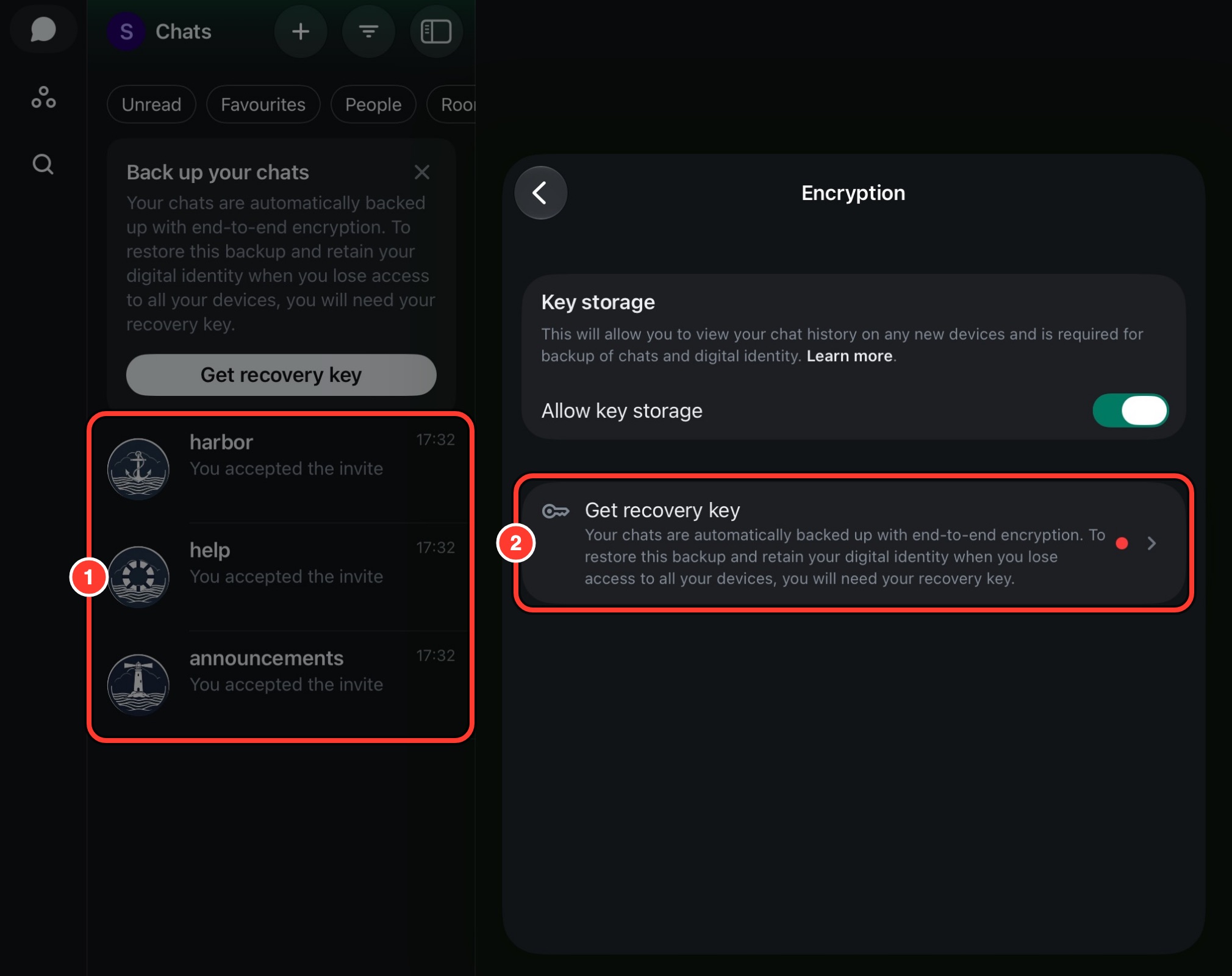
You are in. Save your recovery key
- Three rooms are waiting for you: Announcements, Help and Harbor, the place to say hello.
- Tap Get recovery key and store the key somewhere safe, such as a password manager.
Do not skip the second one. Your messages are encrypted, and the recovery key is what unlocks them on a new phone or computer. If you lose it and every device you were signed in on, the older messages cannot be read again, by you or by us.
What next
- On your computer, open element.nethaven.eu and sign in with the same username and password. It asks you to confirm the new device from your phone or with the recovery key.
- Find people by their full address, such as @friend:nethaven.eu or @friend:matrix.org.
- Questions go to the Help room. The questions page covers privacy, calls and what happens to your account.
If you get stuck
The invite code is refused.
Check for a typing slip first: capital letters matter. A code that was already used, or that is past its date, stays refused. Write to harbormaster@nethaven.eu for a new one.
The 6-digit code does not arrive.
Look in spam, and check that the address shown on the page is yours. If you mistyped it, go back and correct it.
The username is taken.
Usernames are given out once and never reused. Try a variation.
I closed the page halfway.
Start again from step 1 with the same code. If it is refused this time, write to the harbormaster.
Something else.
Write to harbormaster@nethaven.eu and say at which step you are. A person answers.